
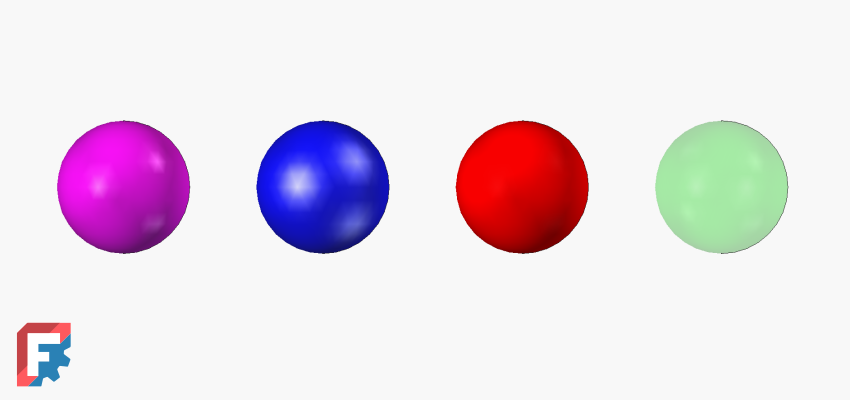
FreeCAD 1.0 introduced a new, refactored material system, which includes updated appearance properties of FreeCAD objects. What was previously one property ‘Shape color’ is now six new properties in the ‘Shape Appearance’ group of properties. This article explains how to set up these properties to achieve the desired surface look.
There are six appearance properties, which you can find in the View properties -> Object Style group under the Shape Appearance umbrella. These properties are:
- Diffuse Color
- Ambient Color
- Specular Color
- Emissive Color
- Shininess
- Transparency
Another way to access the appearance properties of an object is by opening the Appearance task panel (Ctrl+D shortcut) and clicking the Appearance button, which opens the Material Properties dialog.

These six properties define the ‘look’ of an object: its color, whether it is shiny or not, and how transparent it is. On a more technical level, each of these properties influences the calculation of how light interacts with an object’s surface, and thus how the surface looks to an observer. Let’s have a look at how each of these properties influences the appearance of an object’s surface.
Diffuse Color defines the surface’s base color when illuminated. It represents how the object scatters light evenly in all directions, independent of the viewer’s angle. In layman’s terms, this defines the color of the surface.

Ambient Color defines the color of a surface under indirect, uniform lighting, representing how it appears when illuminated only by ambient light in a scene, without directional light, shading, or highlights. In other words, this defines the color of the surface hit by indirect uniform light.
Ambient color is much less prominent than the diffuse color. For a typical material like plastic, the ambient color should be set to a darker shade of diffuse color. So if a diffuse color of an object is set to bright red RGB (255, 0, 0), the appropriate ambient color could be set to RGB (200, 0, 0). As ambient color’s influence on the surface appearance is not so powerful, for most uses in FreeCAD it is OK to leave the default ambient color, which is RGB (85, 85, 85).

Specular Color defines the color and intensity of the bright, mirror-like highlights that appear on shiny or reflective surfaces when light hits them directly. Basically, how shiny the surface is – bright colors define shiny surface and dark colors define matte surface.
A standard material like plastic, rubber, or wood does not influence reflections by its own color. So to simulate this, only shades of gray should be used in the specular color. Metals like gold or copper tint the reflection, so you can use color values in the specular color definition.

Emissive Color defines the color of a surface that appears to emit light, independent of external lighting, making the object look self-illuminated. Note that this does not simulate a light in the FreeCAD 3D space, it only creates an illusion of light emission. So even if a bright color is set as an emissive color for a surface, other objects in the 3D space will not be influenced by this emission. For materials that do not emit light, set this property to black RGB (0, 0, 0).

Shininess defines the size and sharpness of specular highlights on a surface. Higher values produce small, sharp highlights, while lower values create broad, soft highlights. It is closely linked to the Specular Color. While Specular Color defines the intensity of reflections, Shininess defines their size. It’s best not to set Shininess to too low percentage values, as a large part of the surface could be covered by specular highlights.

Transparency defines how much light passes through an object, making it partially or fully see-through. Use 0% for opaque surfaces and 100% for fully transparent surfaces.

These six core appearance properties enable FreeCAD users to achieve various surface interactions with light, allowing them to simulate the appearance of different types of materials. These properties are also widely used in the CG (Computer Graphics) industry, so most rendering engines should be able to support them.
Note that every FreeCAD material can have an appearance assigned with these basic appearance properties. If said material is then applied to an object, the appearance properties of the object are set from the material’s appearance values.

To reiterate, for a typical FreeCAD user, setting the Diffuse Color is crucial for changing an object’s color. This is roughly what Shape Color did in FreeCAD 0.21 and earlier versions. You can also adjust the gray value of Specular Color to adjust the reflectivity of an object. Changing these two values is typically sufficient for most use cases.
11 responses to “Explainer: Appearance Properties in FreeCAD”
This explainer was very helpful.
It would be great if the explanations could be added as tooltips in FreeCAD. I was confused by this menu before.
Also would be great if “Diffuse” color would be at the top of the menu since that is the most critical one
The tooltips are already being worked on: https://github.com/FreeCAD/FreeCAD/issues/24434
The answer to the order of properties is in the comment bellow.
Thanks for the info.
If “Changing these two values is typically sufficient for most use cases.”, meaning Diffuse Color and the grey value of Specular Color, why not listing them as the first two listed color items? Like:
Diffuse
Specular
Ambient
Emissive and so on …
At the moment it seems to be done alphabetically.
The order is currently different at different places. I already reported the issue, but it will not make it into the 1.1 release.
Diffuse and Ambient properties will stay next to each other though, because they influence the appearance in a somewhat related way.
may be a Tutorial wiki page linked to Preferences wiki page
What a wonderful and concise article, it would be fantastic if it were possible to access such assistance from within Freecad at the click of a button right next to the feature itself without having to search for it.
I am not much of a friend of buttons in the UI pointing to lengthy explainers. Tooltips, which will be added, should be enough.
This is a fantastic explanation. It is a very neat set up to have so many options. I think it would be a good idea to hide the 4 options that are normally not used in “easy” mode.
Notice that in object Properties panel, these are grouped under ‘Shape Appearance’ — you can change this value and in changes the diffuse color.
This is the ‘easy mode’ solution at least in Properties panel.
There’s however a UX bug (i.e. not a feature, in my opinion) when working with appearances in FreeCAD: The appearance you apply to objects in the 3D view are not applied to Bodys but instead the current, visible subfeature of the Body. So you typically end up having multiple appearances for the same object, which is useless for the majority of users (and all newcomers). This makes FreeCAD behave buggy. The same is true for transparency. See the following issue: https://github.com/FreeCAD/FreeCAD/issues/24236 .
Thanks for all these frequent blog posts! This makes it entertaining and valuable to follow the development of this open source project. I guess FreeCAD will evolve a lot in the coming years.
Yes, there are quite a lot of areas regarding the new appearance system that need to be ironed out. It will get better with time.